Objective
Use Branding settings in the Client Feedback Tool (CFT) to define how the four color options Primary, Secondary, Accent, and Button Text appear throughout both the client facing survey experience and internal email communications. This includes how colors display in feedback invitations and reminders sent to contacts. This is helpful when aligning your firm’s branding with the look and feel of communications shared with clients.
Step 1: Access the Modern-CFT
From the Modern dashboard:
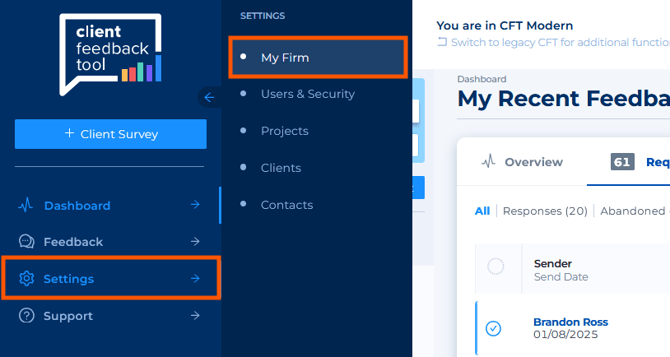
- Click the Settings icon on the left-hand side
- Select My Firm from the settings menu
Step 2: Access the Manage Survey Templates Page
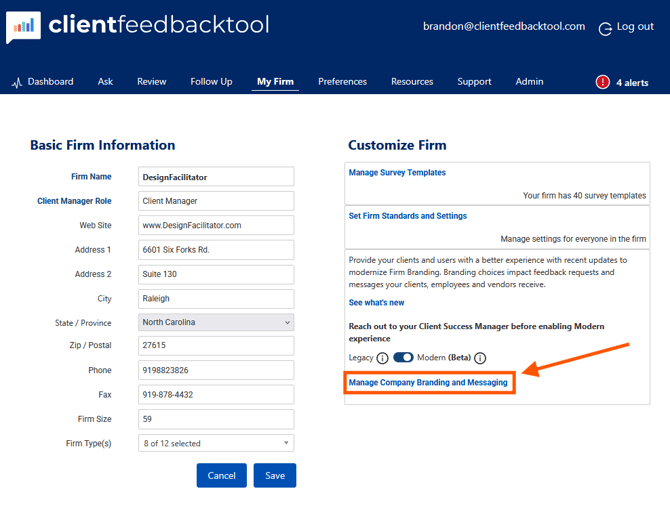
From the My Firm page:- Click on Manage Company Branding and Messaging
Step 3: Customizing Branding and Messaging - Appearance
CFT Branding allows for 4 color specifications: Primary, Secondary, Accent, Button Text. This article details these color associations, explaining where they appear in each user and respondent experience.
The description in this document will use the color specifications pictured below.
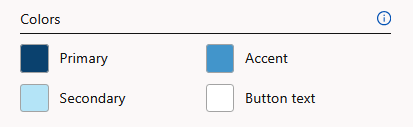
- Primary and Accent colors: Pictured at 100% opacity.
- Secondary color: Pictured at 25% opacity.
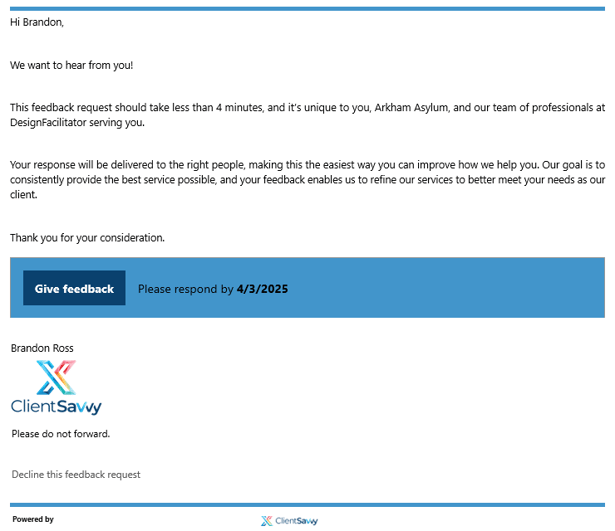
Invitation and Reminder Emails
These are the emails your contacts receive when invited to give feedback.
- Primary color: Dark blue appears on the Give Feedback button
- Accent color: Medium blue appears in the header and the background behind the Give Feedback button
Note: The black text on the medium blue bar that displays Please respond by [CloseDate]remains black. Be sure to select an Accent color that provides enough contrast for black text to remain visible.
Giving Feedback
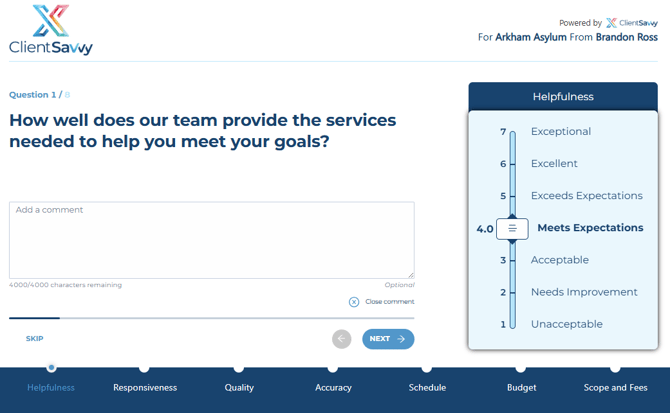
This is what recipients see when submitting their responses.
- Primary color: Dark blue appears on all text, the progress bar at the bottom, and the background of the scale category name
- Accent color: Medium blue appears on buttons and indicators such as the question number (Ex: Question 1/8)
- Secondary color: Light blue appears in the background of the scale
- Button Text color: White appears on the button used to advance to the next question
Live Survey - NPS view
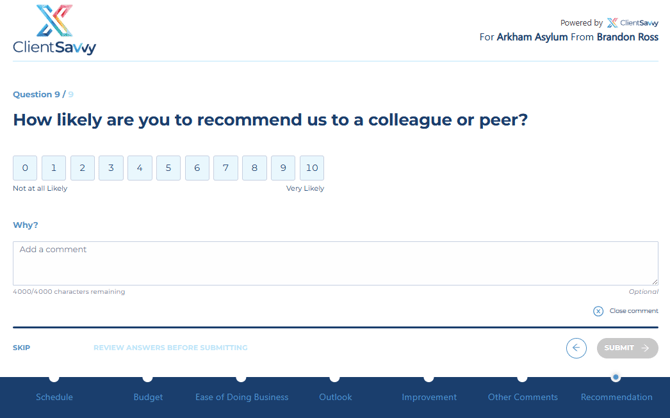
This is what recipients see when providing a Net Promoter Score.
- Primary color: Dark blue appears on all text, the progress bar at the bottom, and the background of the scale category name
- Accent color: Medium blue appears on buttons and indicators such as the question number (Ex: Question 9/9) and labels like Why and Skip
- Secondary color: Light blue appears as the background for the NPS scale, the selected score at 100 percent, and the Review answers before submitting text
Alert Notification Email
These are internal notifications sent to your team when a response is submitted based on user or firm preferences.
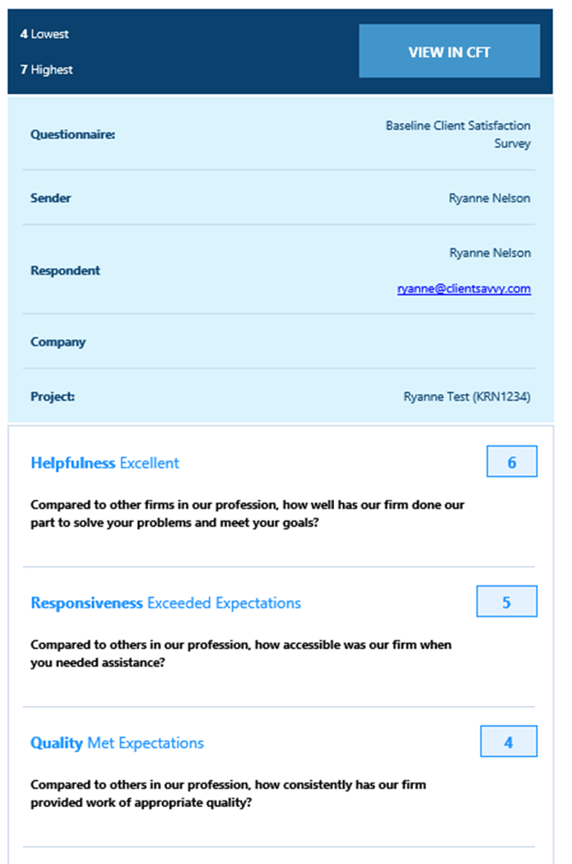
- Primary color: Dark blue appears on all text and the bar background at the top and bottom of the email
- Accent color: Medium blue appears on buttons
- Secondary color: Light blue appears as the background