
Using Employee Surveys in Modern
Employee Surveys are now available in Modern, allowing firms to create, send, and analyze employee feedback surveys directly in the Modern experience.. This makes it easier to manage both client and employee feedback in one place. Employee Surveys are available as an add-on feature, and users with the right permissions can launch Employee Feedback surveys from Ask, use employee-specific templates, and review employee survey results in Modern dashboards and reporting.
Who can use Employee Surveys in Modern
Access depends on permissions:
- Users need Send Company Employee Surveys permission to send Employee Feedback surveys.
- Users need View Company Employee Survey Results permission to view employee survey responses in dashboards and reports.
If a user does not have permission to send employee surveys, the Employee Feedback option is disabled. If a user does not have permission to view employee survey results, employee data does not appear in Modern dashboards or reporting.
Start an Employee Survey from Ask
Employee surveys now begin from the Modern Ask experience.
To start an employee survey:
- Open Ask.
- Select Employee Feedback.
- Click Begin.
- Choose an employee survey template.
- Continue through the send flow.
When Employee Feedback is selected, only employee survey templates are shown. Client and employee templates do not mix.
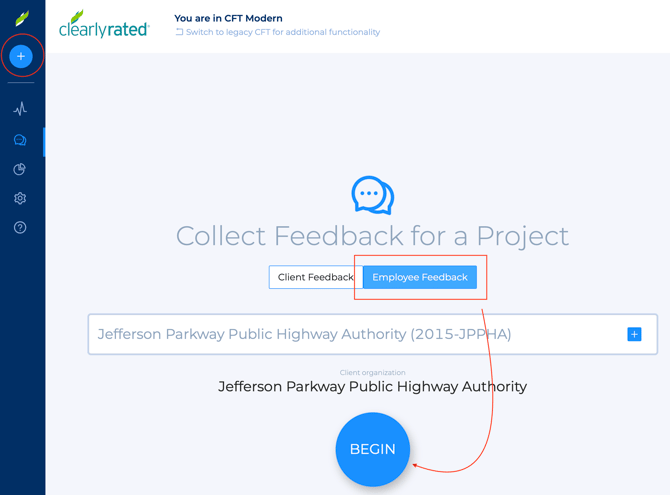
Switching between Client and Employee survey types
If you change the survey type after starting the flow, the survey setup resets so you can restart with the correct template and selections for the new survey type. This helps keep client and employee survey flows separate and prevents mixed setup states.
View Employee Survey results in Modern
Users with permission can analyze employee survey results in Modern dashboards and reports instead of relying on Legacy. Employee survey data is intended to display using the same overall Modern reporting model as client feedback, including the same general metrics and permissions behavior.
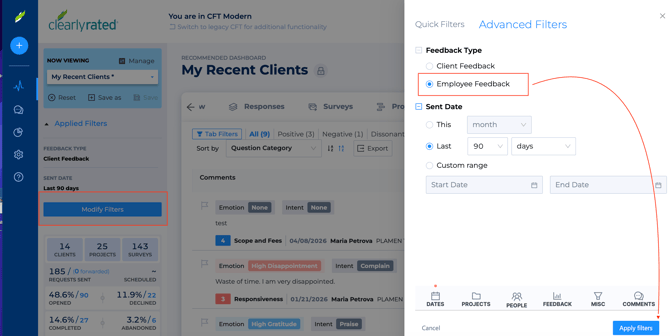
A required Feedback Type filter is used in Modern dashboards to separate Client Feedback from Employee Feedback. This filter always has one selected value, cannot be removed, and defaults existing Modern dashboards to Client Feedback unless another value has already been stored.
If a user without employee-view permission selects Employee Feedback, the dashboard shows the standard empty state instead of exposing restricted data.
Good to know
- Employee Surveys in Modern are behind a feature flag during rollout.
- Employee and client survey flows are intentionally separated by survey type.
- Employee results can be viewed in Modern dashboards and reporting by users with the right permission.
- This article should only describe currently available filtering behavior. The separate internal-recipient filtering path is handled in other work and should not be described here as a current user-facing capability.
FAQ
Can I send employee surveys from Modern now?
Yes, if you have the Send Company Employee Surveys permission.
Can I analyze employee survey results in Modern?
Yes, if you have the View Company Employee Survey Results permission.
Will I see employee templates when sending a client survey?
No. Templates are scoped by survey type, so client and employee templates do not mix.
What happens if I do not have permission to send employee surveys?
The Employee Feedback option is disabled.
What happens if I do not have permission to view employee results?
Employee data does not appear in dashboards or reports, and selecting Employee Feedback shows the standard empty state.