
Manage Firm Dashboards
Firm Dashboards help Firm Admins create and manage shared dashboards for their firm, then assign those dashboards to specific roles or individual users. This makes it easier to give the right people the right dashboard experience without asking each user to build or maintain their own setup. Firm Dashboards can be assigned, left unassigned for later use, marked as Favorites or Home dashboards, and managed centrally from the Firm Dashboards page.
Who can use Firm Dashboards
Firm Dashboards are managed by Firm Admins only. Firm Admins can create, edit, assign, unassign, and delete Firm Dashboards across the firm. Other users can only access Firm Dashboards that have been assigned to them, and they cannot overwrite or delete those dashboards.
What is a Firm Dashboard
A Firm Dashboard is a dashboard owned at the firm level instead of by one individual user. Any dashboard created by a Firm Admin can be converted from a Personal Dashboard into a Firm Dashboard. Once a dashboard is converted to a Firm Dashboard, that change cannot be undone. After conversion, the original creator no longer has special ownership rights. Any Firm Admin in the firm can manage that dashboard.
Firm Dashboards always exist in one of two states:
- Assigned: the dashboard is assigned to at least one role or one individual user
- Unassigned: the dashboard has no assignments yet
Unassigned Firm Dashboards are still visible to Firm Admins and can be assigned later, but they are hidden from end users until an assignment is added. Unassigned dashboards also cannot have Favorite or Home status.
How to create a Firm Dashboard
- Start with a dashboard you created as a Firm Admin.
- Open the 'Manage' dashboards drawer
- Click on the 3-dot menu of a Personal Dashboard, select 'Edit'
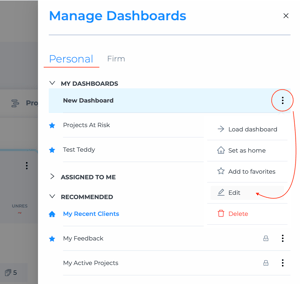
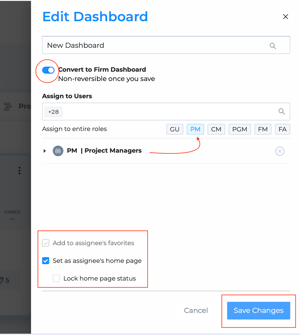
- Turn on Convert to Firm Dashboard. Upon save, this change is permanent.
- Optionally add assignments, Favorite, or Home settings.
- Save the dashboard.
How assignments work
Firm Dashboards can be assigned to one or more user roles, one or more individual users, or a combination of both. Supported assignment roles include Firm Manager, Client Manager, Project Group Manager, Project Manager, Firm Admin, and General User.
If a user is already covered through a selected role, that same user is not counted again as a separate direct assignment. This prevents duplicate visibility and duplicate assignment counts. If someone was directly assigned first and later becomes covered by a selected role, their direct assignment collapses under the role assignment automatically.
In the assignment UI, selecting a role adds all users in that role. You cannot remove one person from inside a selected role. To stop assigning the dashboard through that role, remove the role itself. You can also search for and add individual users directly.
Favorite, Home, and Locked Home
Firm Admins can optionally assign a Firm Dashboard as a Favorite or Home dashboard for the audiences they assign it to. These settings control how the dashboard appears for end users.
Favorite
A Firm Dashboard can be assigned as a Favorite to roles or individuals. A firm-assigned Favorite is never locked, so users can remove it from their Favorites if they want. Even if they do, the dashboard still remains available in their Firm Dashboards section as long as it is assigned to them.
Home
Every user always has one effective Home dashboard. When a dashboard is set as Home, it is automatically favorited, appears first in the user’s Favorites list, and cannot be removed from Favorites while it remains Home.
Locked Home
Only Firm Dashboards can be set as a Locked Home. When a Firm Dashboard is a Locked Home, users cannot change their Home dashboard away from it, remove it from Favorites, overwrite it, or delete it. Personal Dashboards can never be Locked Home dashboards.
If a dashboard stops being Home, it reverts to Favorite status and can then be unfavorited normally.
How Home is chosen when multiple dashboards qualify
If a user could receive more than one Home dashboard, the platform uses a fixed priority order to choose the one effective Home:
- A Home dashboard assigned directly to that individual user
- A Home dashboard assigned through a role
- The user’s Personal default home
- The system default home
If two role-based Home dashboards apply, the system uses this role priority:
Firm Manager → Client Manager → Project Group Manager → Project Manager → Firm Admin → General User
This keeps Home behavior predictable. For example, a direct Home assignment always overrides a role-based Home assignment. If access changes later because of updated assignments, role changes, or dashboard deletion, the system recalculates the user’s effective Home automatically.
Where Firm Admins manage Firm Dashboards
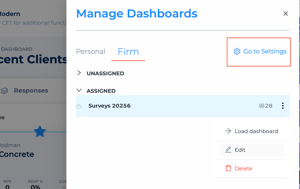
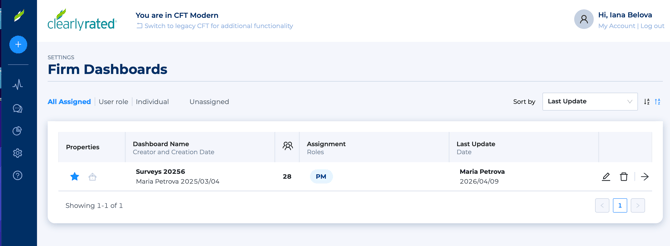
Firm Admins can open the Firm Dashboards page from the Navigation panel → Firm Dashboards. They can also reach it from the Manage panel through the Go to Settings link on the Firm tab. This page is only available to Firm Admins.
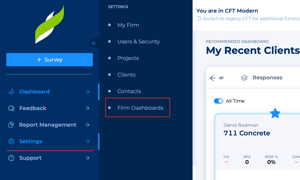
The Firm Dashboards page includes four views:
- All Assigned: all Firm Dashboards that have at least one assignment
- User Role: dashboards grouped by assigned role
- Individual: dashboards grouped by directly assigned users
- Unassigned: dashboards with no current assignments
On this page, Firm Admins can load dashboards, open Quick Edit, and delete dashboards. The page also shows read-only status indicators for Favorite, Home, and Locked Home. Results can be sorted by Last Update or Dashboard Name, and pagination appears when there are more than 12 dashboards.
Manage panel experience
The Manage panel gives users a quick way to browse dashboards available to them. It opens from the Manage button in the dashboard header.
For Firm Admins, the Manage panel has two tabs:
- Personal
- My Dashboards
- Assigned to me
- Recommended
- Firm
- Assigned
- Unassigned
For non-Firm Admin users, the Manage panel has one view with three sections:
- My Dashboards
- Firm Dashboards
- Recommended
Within the Manage panel, dashboard rows can show Favorite, Home, Locked Home, and lock indicators depending on the user’s permissions and the dashboard’s status. Firm Dashboards assigned to users appear there once only, even if the user is covered by both a role and a direct assignment.
What end users can do with assigned Firm Dashboards
Users can open and use Firm Dashboards assigned to them. They can also see whether a dashboard is a Favorite, Home, or Locked Home. However, non-Firm Admin users cannot rename, overwrite, or delete Firm Dashboards assigned to them. For locked Home dashboards, they also cannot change Home away from that dashboard or remove it from Favorites.
Users can still favorite and unfavorite their own Personal Dashboards. They can also remove a firm-assigned Favorite unless that dashboard is currently their Home.
Editing and deleting Firm Dashboards
Firm Admins can update Firm Dashboards from a dashboard's 'Edit' panel or from the Firm Dashboards management page. They can change the dashboard name, assignments, and Favorite or Home settings, including Locked Home when applicable.
Deleting a Firm Dashboard removes it completely from the firm. It is removed from all assigned audiences, and any related assignment, Favorite, or Home effects are cleared automatically. Deletion requires confirmation.
If someone is actively viewing a Firm Dashboard when it is deleted, the expected behavior is a forced refresh so they are no longer kept on a dashboard that no longer exists.
Important things to know
- Converting a dashboard to a Firm Dashboard is permanent.
- Only Firm Admins can manage Firm Dashboards.
- Non-Firm Admin users only see Firm Dashboards assigned to them.
- Unassigned Firm Dashboards are hidden from end users.
- Unassigned Firm Dashboards cannot be Home or Favorite dashboards.
- Direct assignments take priority over role-based Home assignments.
- A user always ends up with one effective Home dashboard.
FAQ
Can I turn a Firm Dashboard back into a Personal Dashboard?
No. Once a Personal Dashboard is converted to a Firm Dashboard, it cannot be changed back.
Can Firm Admins manage Firm Dashboards created by other Firm Admins?
Yes. After a dashboard becomes a Firm Dashboard, it is owned at the firm level. Any Firm Admin can edit or delete it.
Can I create a Firm Dashboard without assigning it right away?
Yes. If you save it without any roles or users selected, it becomes an Unassigned Firm Dashboard. Only Firm Admins can see it until assignments are added.
Can the same dashboard be assigned to both a role and an individual user?
Yes. But users are not duplicated. If someone is already covered through a selected role, they are not counted again as a direct assignment.
Can users remove a Firm Dashboard from Favorites?
Yes, if it is only a Favorite. No, if it is currently their Home dashboard.
Can Personal Dashboards be locked as Home?
No. Only Firm Dashboards can be Locked Home dashboards.
Can Save As create a Firm Dashboard?
No. Save As creates a Personal Dashboard. Converting a dashboard to a Firm Dashboard is handled separately through the Firm Dashboard workflow.