
Use Comments Reports in Modern Reporting
Comments Reports in Modern Reporting let you export, sort, and share comment feedback directly from the Comments tab. You can generate reports for all comments, testimonials, NPS comments, flagged comments, and dissonant comments, then export them as PDF or Excel depending on the report format you need.
Available report types
You can generate these Comments Reports in Modern Reporting:
- All Comments
- Testimonials
- NPS Comments
- Flagged Comments
- Dissonant Comments
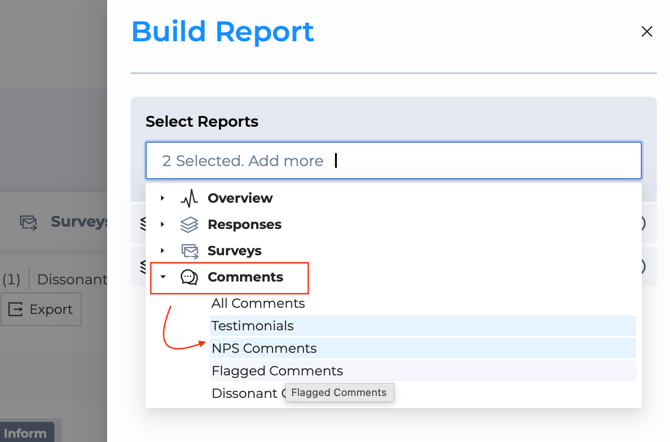
These report types are available from the Comments tab export flow and in Build Report under Comments.
Export Comments Reports from the Comments tab
- Open the Comments tab in reporting.
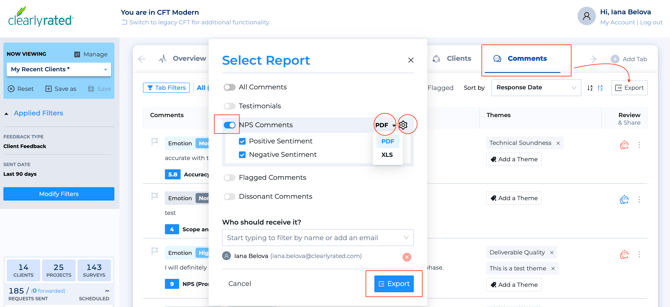
- Click Export.
- Select the report type or types you want to generate.
- Choose the available format.
- Apply any available report settings.
- Export the report.
The Comments tab has its own dedicated Export button for Comments Reports.
PDF exports
PDF export is available for all five Comments report types. In the Comments tab export modal, each report type appears with a toggle and a settings icon. PDF reports follow the current dashboard sort order and include both dashboard filters and Comments-tab filters on the title page, including Themes, Emotions, Intent, and Keywords.
For most PDF report types, you can choose:
- Positive
- Negative
Both are selected by default. For Testimonials, you can choose:
- For Review
- Client Approved
- Client Declined
When you export a PDF from the Comments tab, the report is generated in the backend and delivered by email when ready.
Build Report support
Comments Reports are also available in Build Report for immediate send or scheduled delivery. All five report types are shown under Comments. They stay selectable even if the current dashboard has no matching comments, so scheduled reports can still be configured.
Excel exports
Excel export is also available for all five Comments report types. Excel exports respect the current dashboard filters, tab filters, and the current sort order from the Comments tab. Each row represents one unique comment.
The Excel export includes newer comment insight fields such as:
- Sentiment
- Emotion Intensity
- Emotion
- Intent
- Themes
- Testimonial Status
If XLS is selected, additional report settings such as Positive and Negative are not shown.
Sort by Question Category
The Comments view now supports:
- Question Category (A–Z)
- Question Category (Z–A)
When selected, comments are sorted by question category, with a secondary sort by newest comment date within each category. This sort also carries into both PDF and Excel exports.
If AI Assistant is disabled
If AI Assistant is turned off for the firm and sentiment analysis is unavailable:
- Positive and Negative options stay visible but are disabled
- Dissonant Comments is unavailable
- Tooltips explain that these options require AI Assistant to be enabled
Good to know
- The old Comments PDF is being replaced by the new All Comments PDF.
- The old NPS Comments PDF is being replaced by the new NPS Comments PDF.
- Scheduled reports using the old Comments PDF are intended to move to the new All Comments PDF automatically.
FAQ
Can I export filtered comments?
Yes. Both PDF and Excel exports respect the current dashboard and tab filters.
Can I export testimonials?
Yes. Testimonials are available as their own report type.
Can I schedule Comments Reports?
Yes. Comments Reports are available in Build Report for immediate send or scheduled delivery.
Does Question Category sorting affect exports?
Yes. The selected sort applies to both PDF and Excel exports.
What happens if AI Assistant is off?
Sentiment-based options are disabled, and Dissonant Comments cannot be selected.