
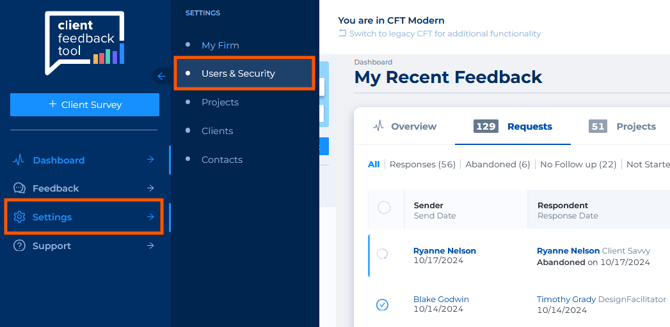
- From the modern dashboard, use the left-hand navigation panel to select Settings, then click Users & Security to open the management window. This will take you to the legacy side of the tool.
-
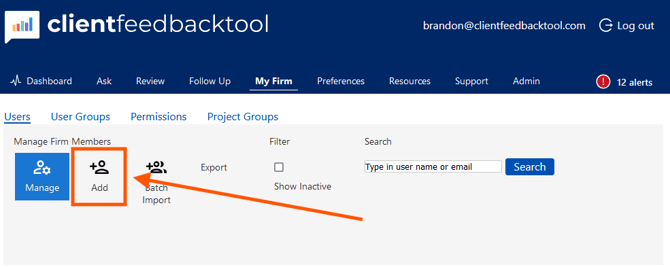
After clicking Users & Security, you’ll access the user management window, where various options and settings are available. To add a new user, click the Add button.
This will take you to a new section where you can enter the user’s information. This step is essential for managing your users effectively and ensuring they have the correct access.
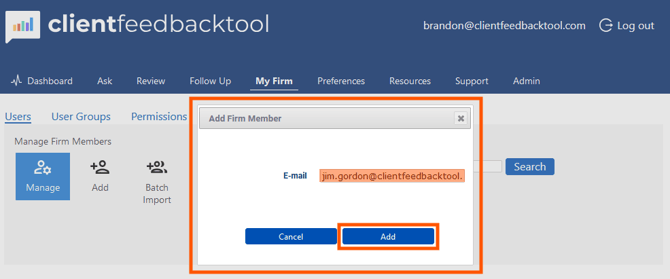
- Input the email address of the new user
- In the provided field, enter the new user's email address
- Click Add
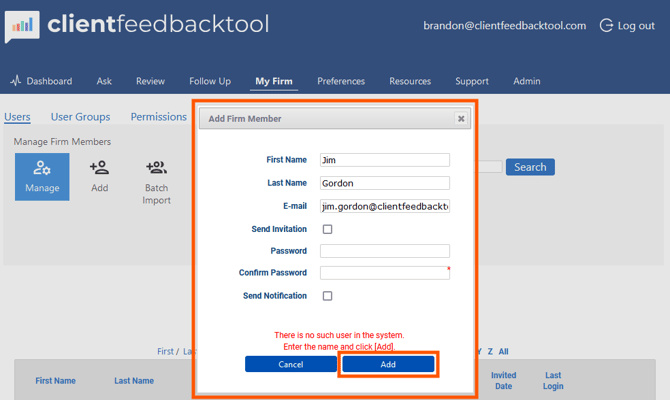
- Enter the following details for the new user
- First Name
- Last Name
- Uncheck the box for Send Invitation
- Enter a Password
- This can be a generic password (ex. CFT123###). User will have the option to change password later).
- Confirm Password
- Uncheck Send Notification.
- Click Add.
Once completed, the user will be successfully added to your account.
Recommended Next Step: Send your new user(s) instructions for logging into the Client Feedback Tool for the first time.
Additional Resources
- For first-time login instructions, refer to the related article: Login - First Time.